
Odoo Studio is one of those things people choose Odoo for.In short, Odoo Studio is a built-in tool inside Odoo that lets you customize the system to fit your needs — no technical knowledge required. That means you don't need to know anything about programming to add features and solutions to your Odoo setup.That said, I should make one thing clear upfront: not everything you can do by editing source code is possible in Odoo Studio.Let's get that out of the way now:
Standard Odoo vs. Odoo Studio vs. Code Changes — Which One Do You Need?
Standard Odoo
This is what you get right out of the box when you first launch Odoo. For most companies, this version is probably more than enough — Odoo already comes packed with useful features.
Odoo Studio
Choose this when you need to customize your interface, data, or simple, linear processes. Examples include changing the layout of forms, creating basic automation rules (like sending a notification when a status changes), or editing PDF document templates.
Code Changes
Choose this when you need to implement complex business logic, integrations, or changes to the core behavior of the system. This could mean implementing advanced calculation algorithms (e.g. commissions based on multiple factors) or integrating with external APIs.
Now that you know what Odoo Studio is and when to use it, let's take a look at what it can actually do. This article won't walk you through how to use Studio step by step — instead, it'll give you an overview of its capabilities. At the bottom of the page, you'll find a link to a hands-on guide for getting started with Odoo Studio.Time for a feature overview...
Installing and Activating Odoo Studio
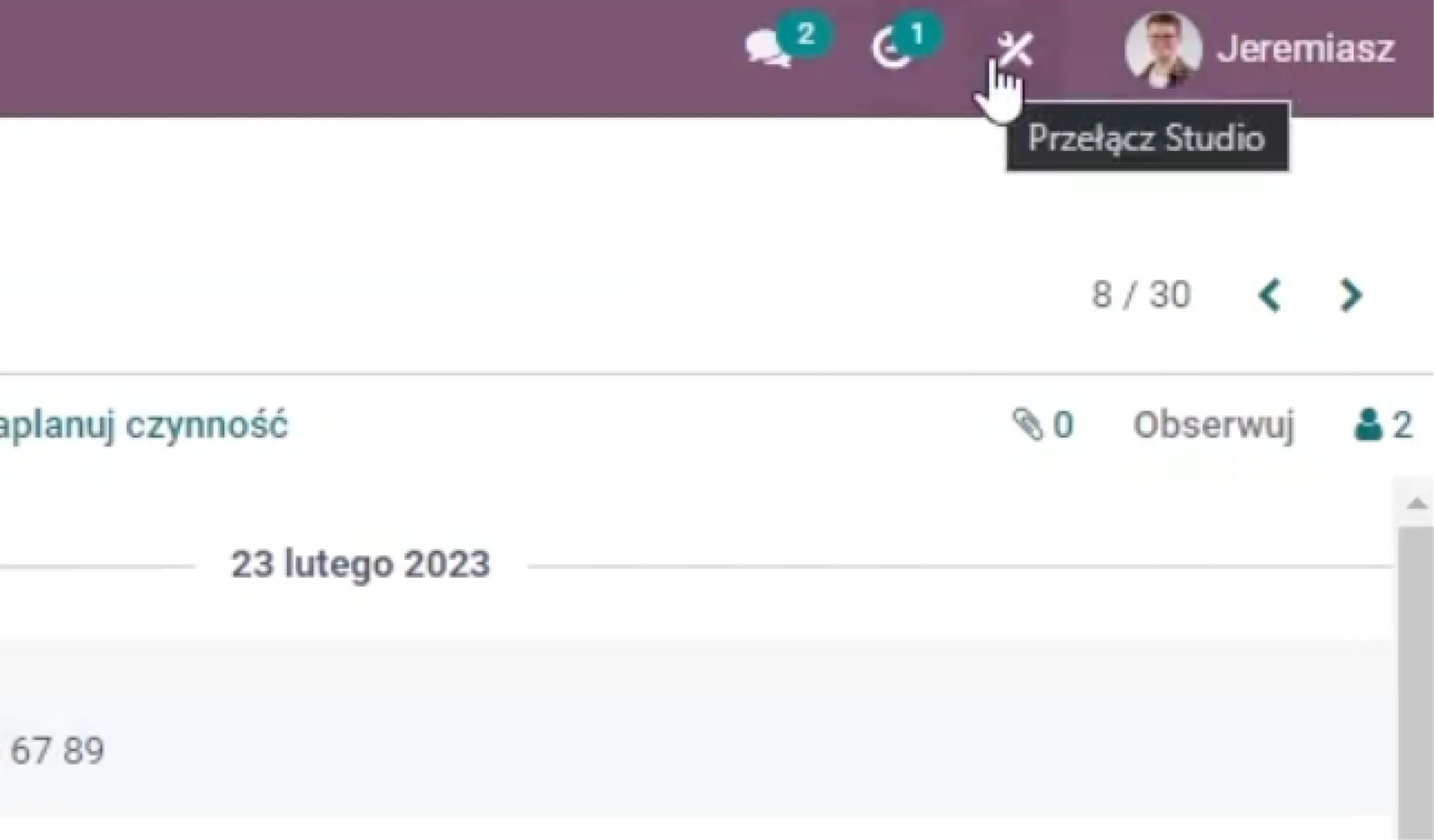
Before we dive in, one quick formality: Odoo Studio is a separate module. To install it, go to Apps, search for "Studio," and click Install.Activation is straightforward. You access Studio via the Toggle Studio button, which appears on the main dashboard and in every module you're currently in.
Modifying Cards and Forms in Odoo Studio (Using the Form View as an Example)
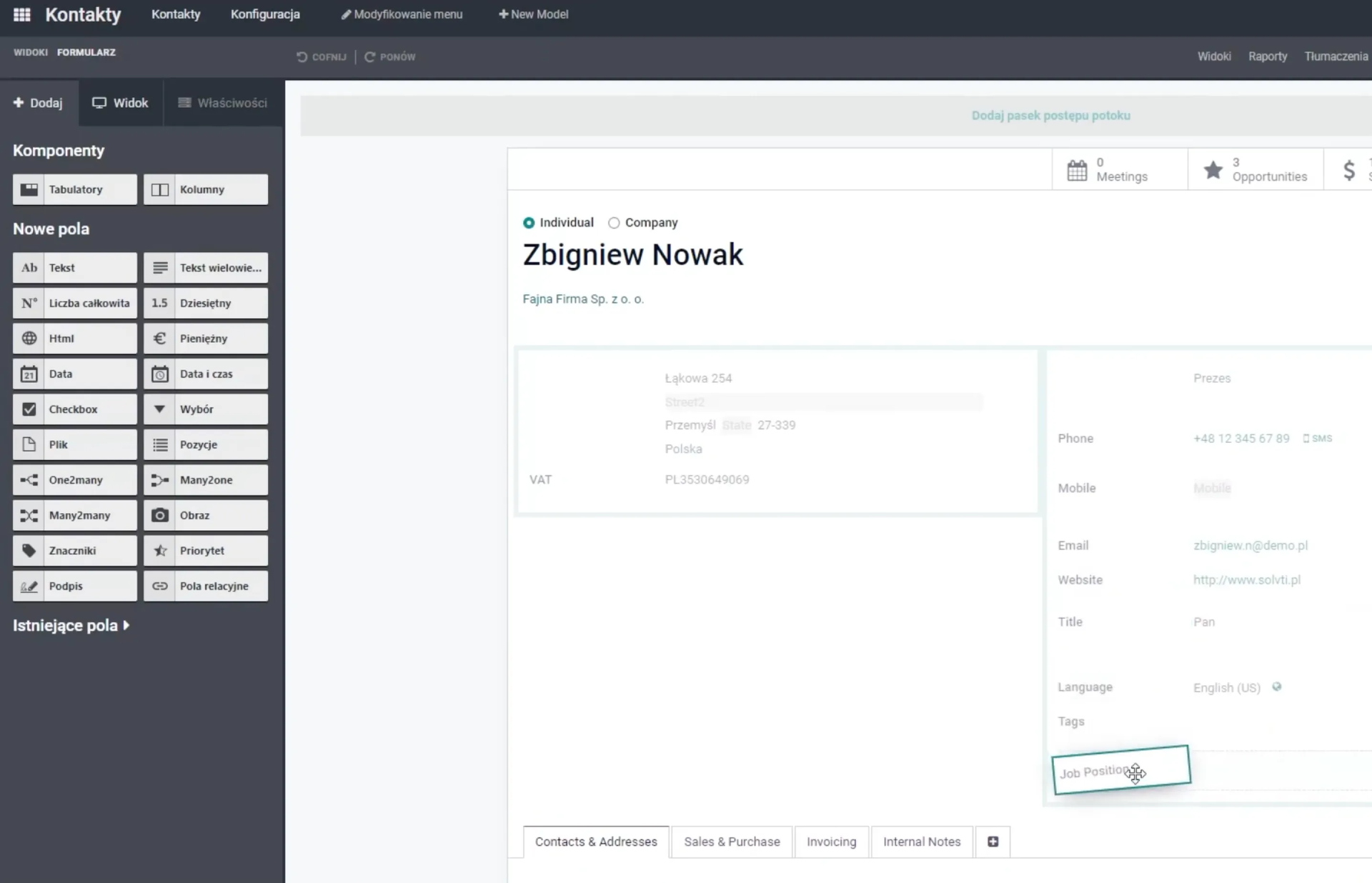
Once you switch Studio on, the magic begins! The first thing you'll notice is how freely you can rearrange things.
Flexible Field Management
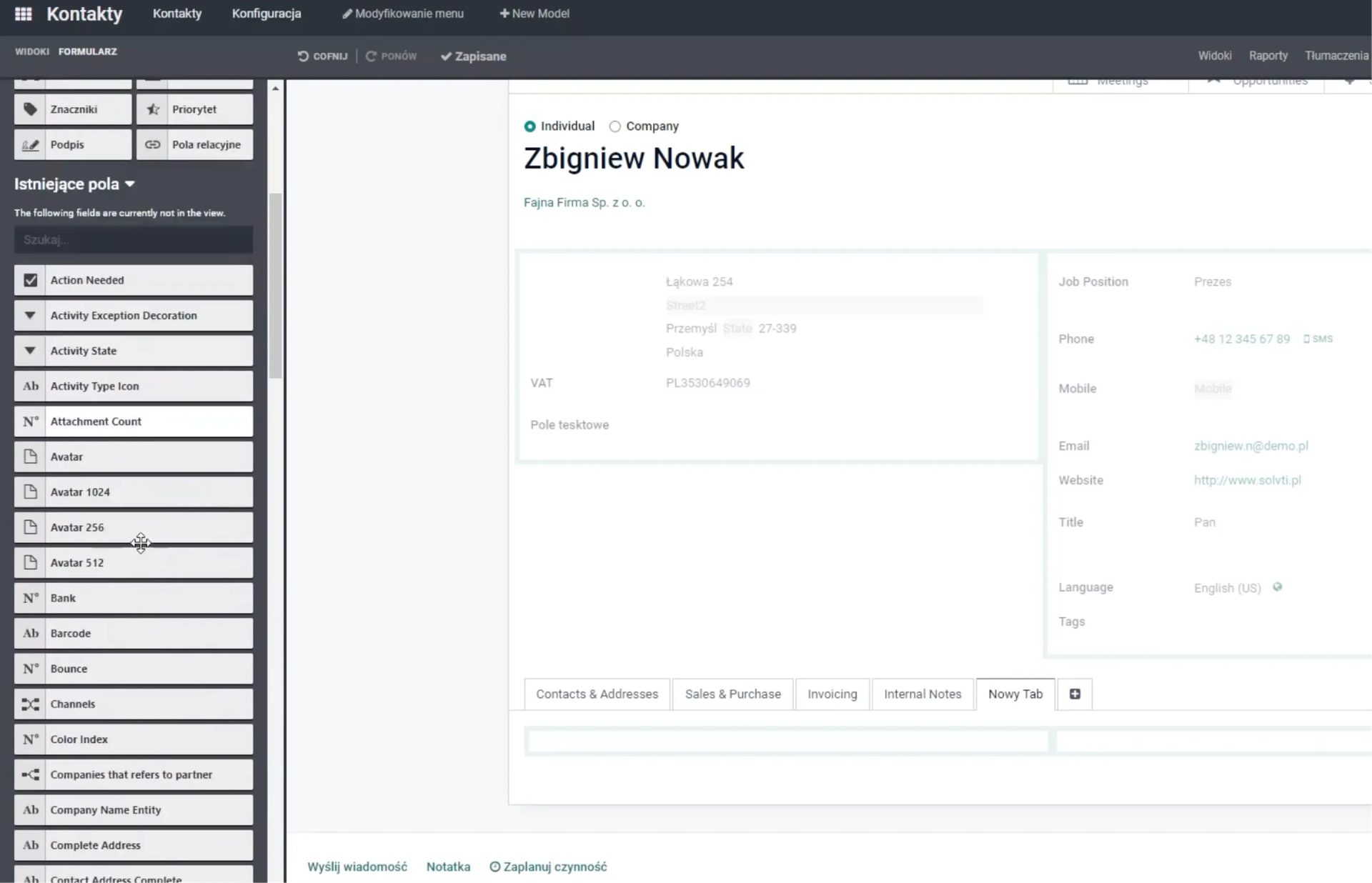
- Every field in the system can be dragged and dropped anywhere on the form, letting you rearrange the layout however you like.
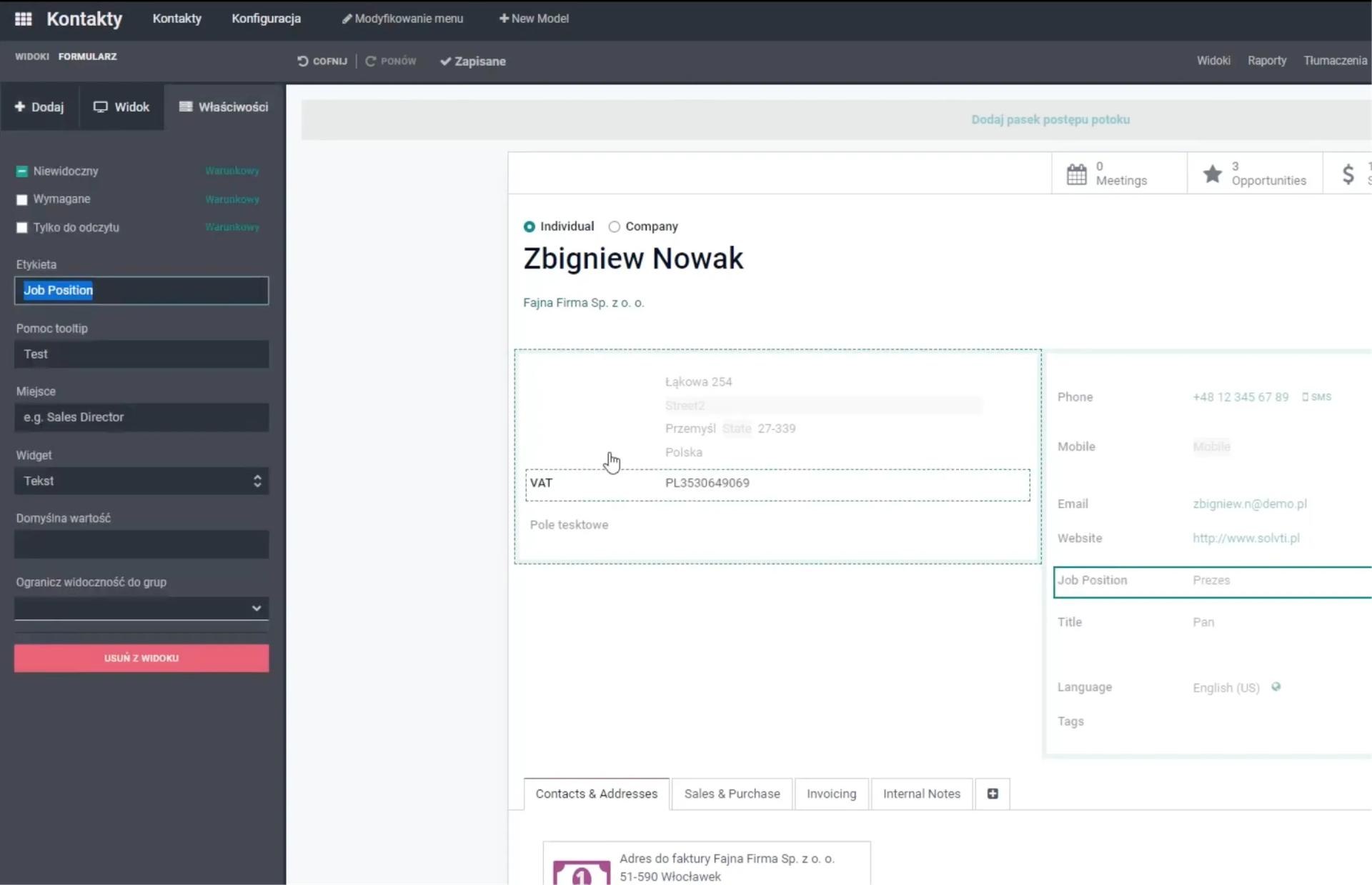
Clicking on a field opens a side panel where you can set key conditions for that field:
- Visibility (or a condition for when it should appear).
- Whether it's required.
- Read-only mode (no editing allowed).
- And of course, all field descriptions.
Adding New Elements — Not Just Fields
In the Add tab, you have plenty of options. You can add new fields like Text Fields or Checkboxes, as well as structural elements like new Tabs.
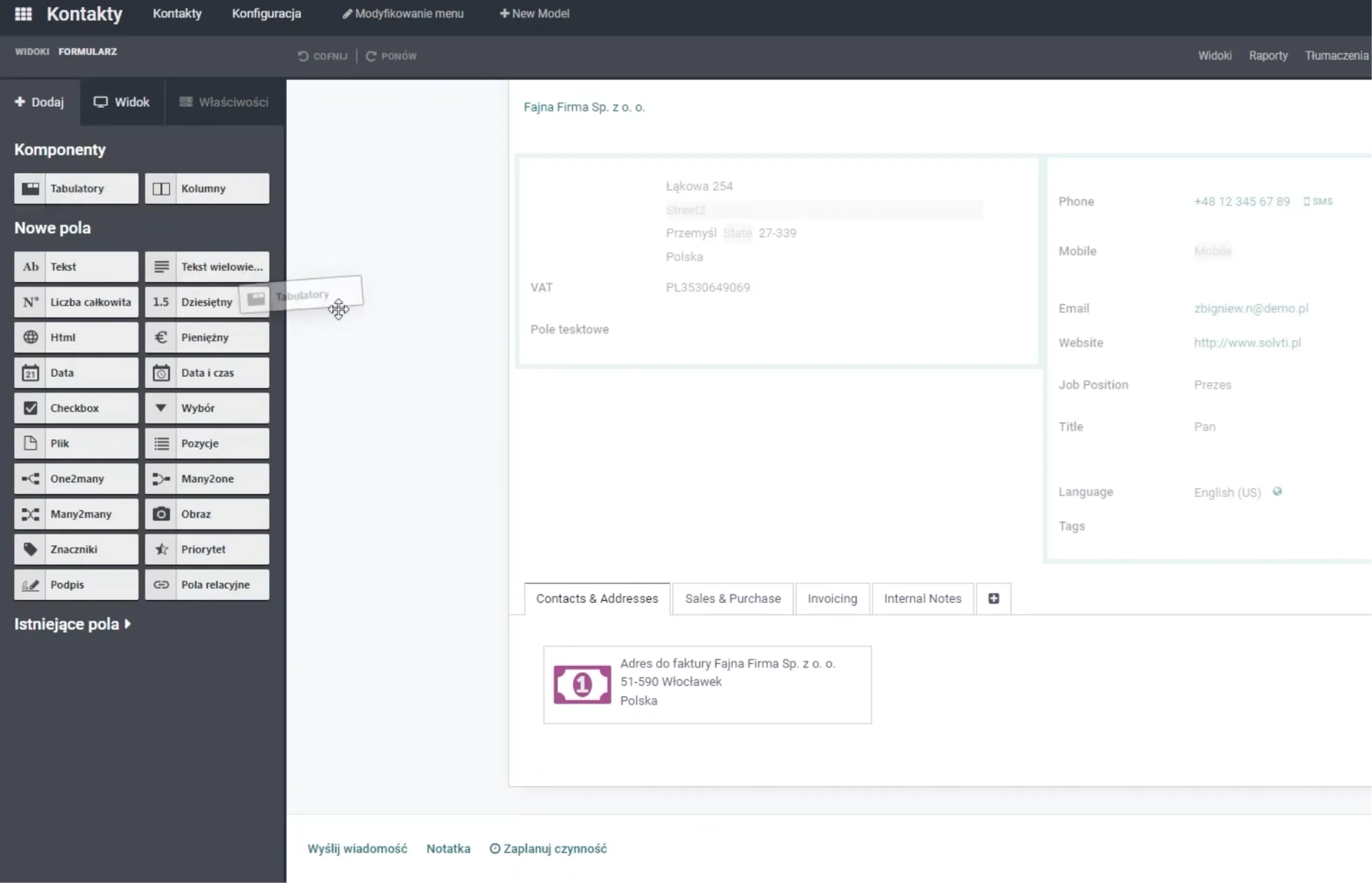
You can also quickly enable fields that exist in the system but are hidden by default.All your changes are saved automatically.
Conditional Visibility
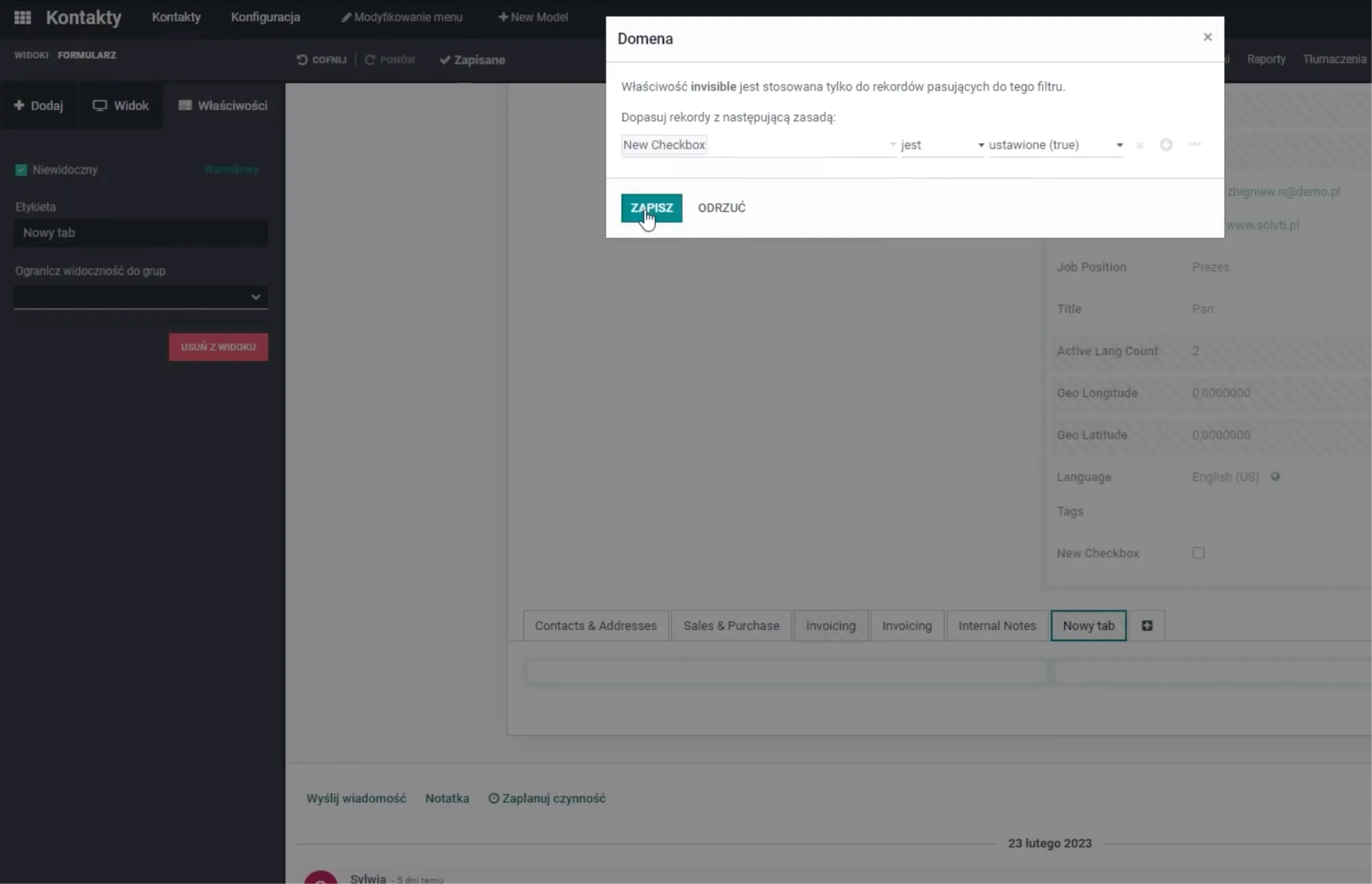
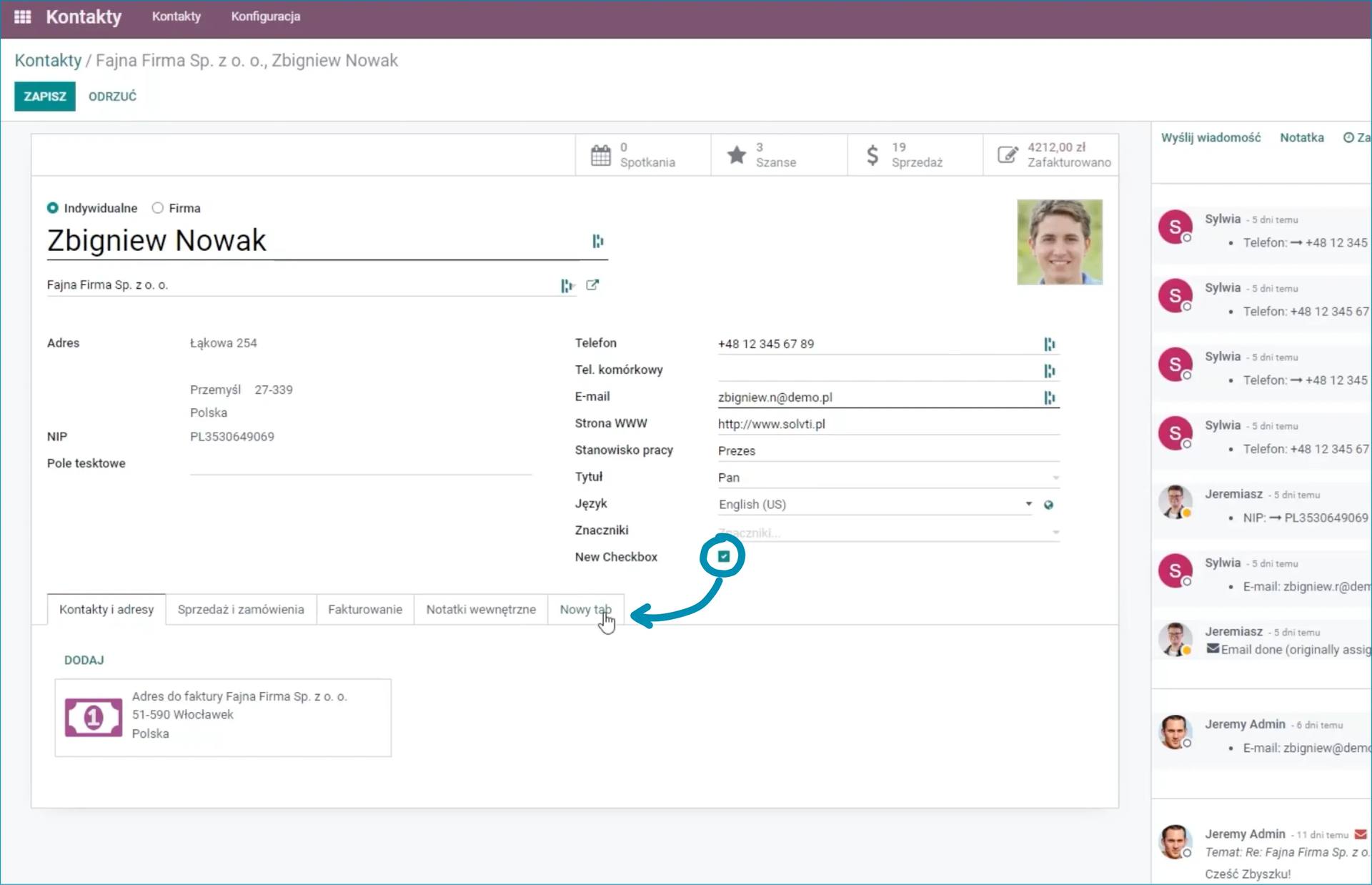
This is one of the more interesting options. You can control when a given element appears. For example, you could set a "New Tab" to stay hidden until the user checks a newly created Checkbox. To edit hidden elements, just go to the View menu and select Show Invisible Elements.
Customizing Other Views and Reports in Odoo Studio
Odoo Studio works across the entire system — not just on the main form.
Managing Views
You can switch to the List view and, just like on the form, add new columns (for example, a Text Field you created earlier) and remove unnecessary data to keep the list clean and relevant to your workflow.
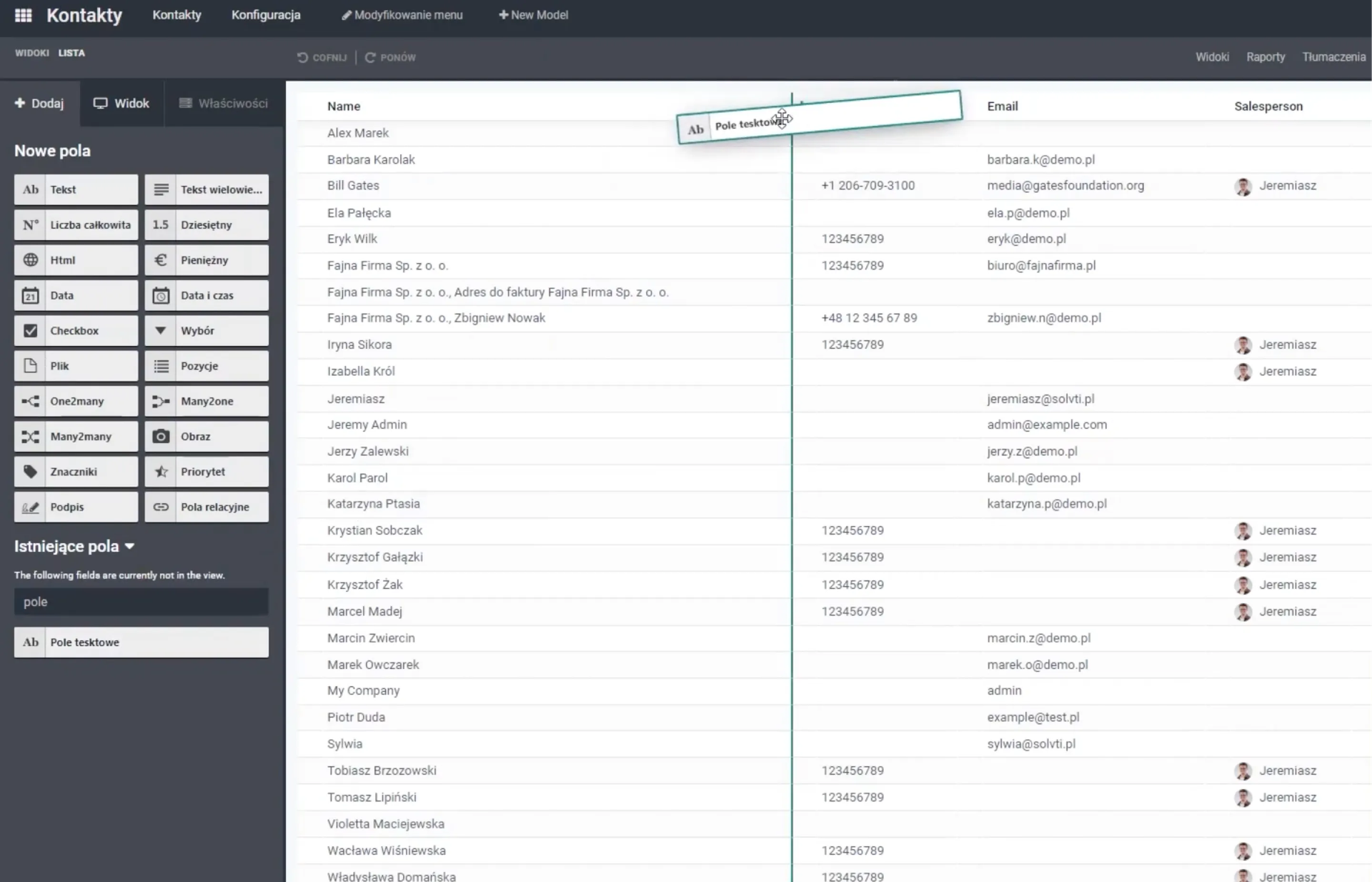
The same visibility conditions and other properties I mentioned above can be applied throughout the entire Odoo system.
Editing Report Templates
With Odoo Studio, you can also edit report templates — like invoices or quotes. In the visual editor, you can add fields the same way you've seen before. For example:
- Add plain text.
- Insert dynamic fields pulled from a record (e.g. the customer name).
- Modify those fields.
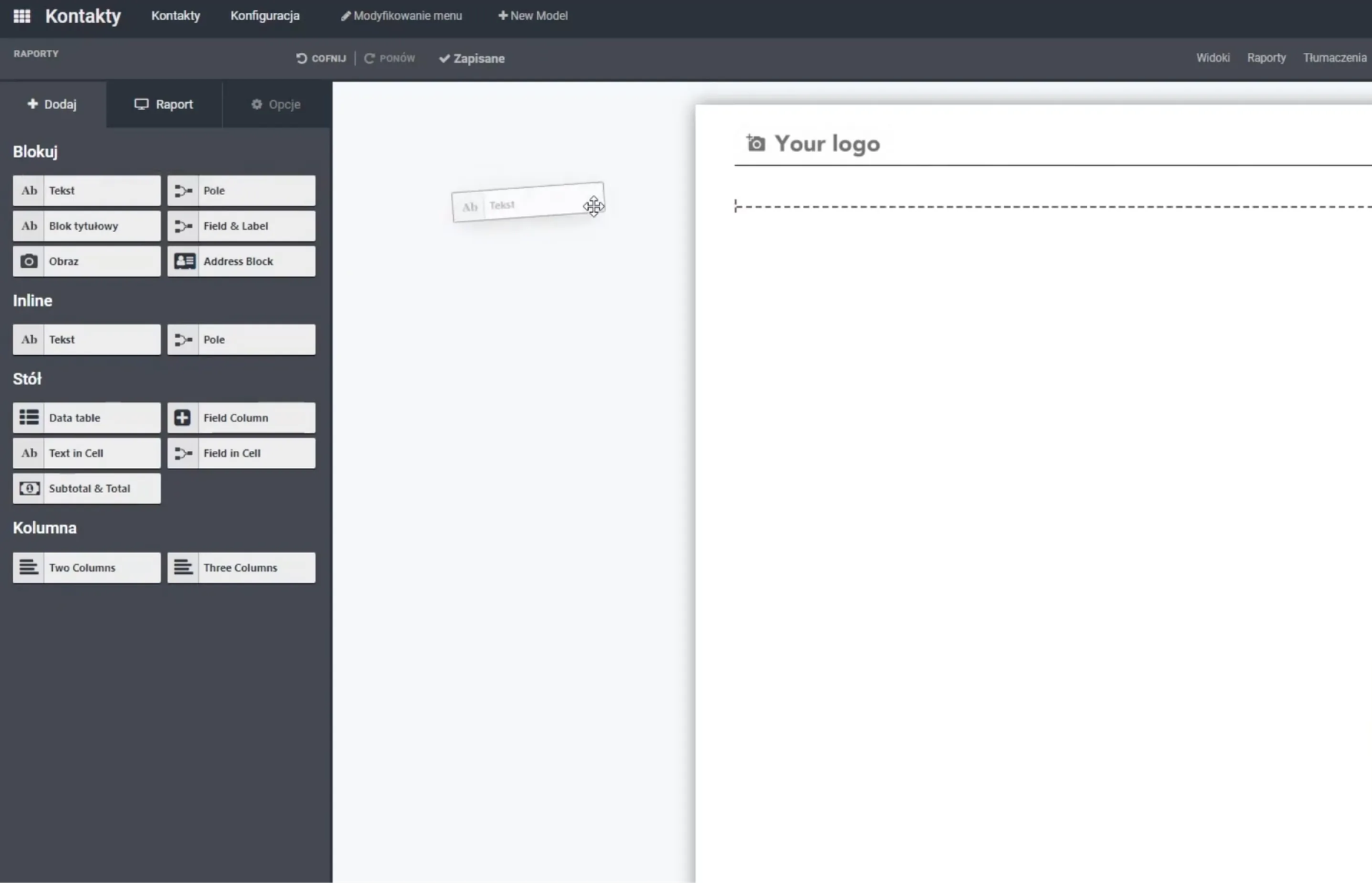
Once you save your changes, the updated report is immediately available on the customer card under the Print button.
The Most Powerful Feature: Building Your Own Apps
The biggest thing Odoo Studio can do is found right on the main Dashboard. When you enter Studio from the Dashboard, a special plus icon (+) appears under Modifications. This is the Add New Application option.
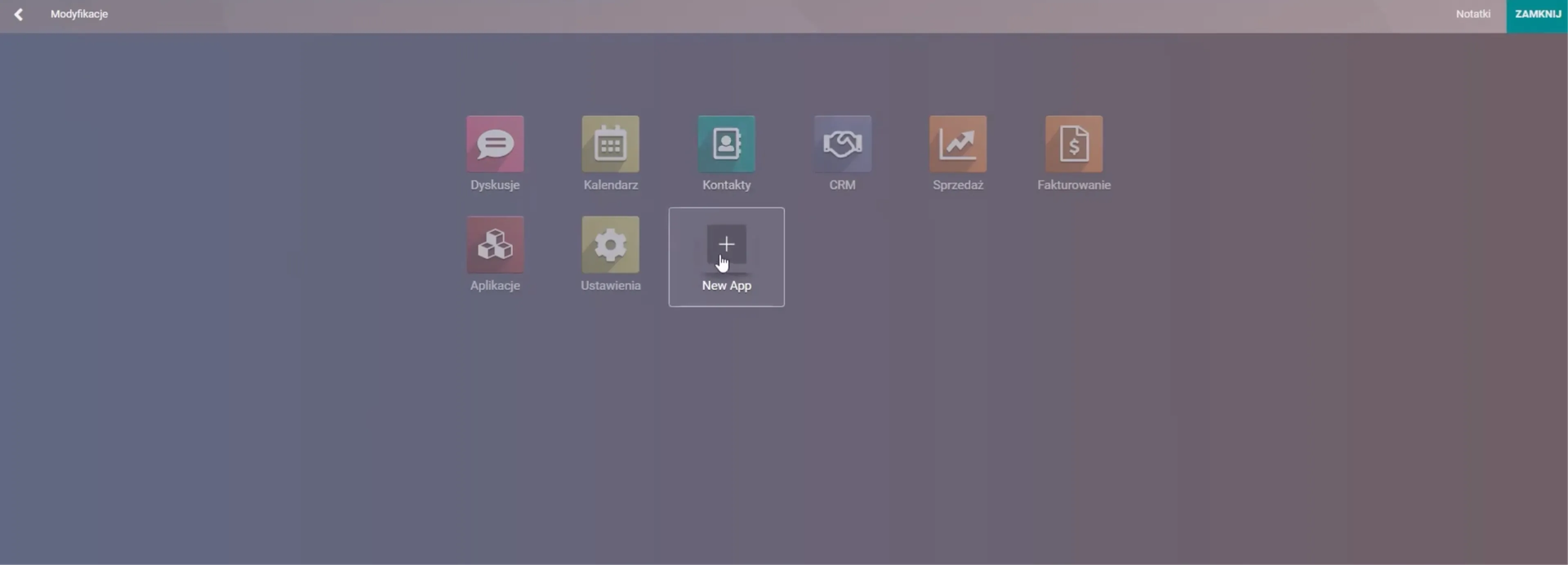
You can build an entire application from scratch! The process is surprisingly simple and accessible to anyone — no programming knowledge needed.
Frequently Asked Questions About Odoo Studio
Did reading about Odoo Studio's features raise some questions? You might find the answers below.
Is Odoo Studio paid?
Yes. Odoo Studio is part of the Odoo Enterprise subscription, which means it's available to customers on the paid version of the system — not in the free Community edition.Pricing depends on the number of users. Read more about the total cost of ownership for Odoo ERP.
Can you write code in Odoo Studio?
No. Odoo Studio is a No-Code / Low-Code tool. It's designed to replace coding with a visual drag-and-drop interface and condition configuration. If you need advanced logic, custom algorithms, or API integrations, those require source code changes done by a developer.
Does Odoo Studio support integrations?
Odoo Studio supports simple integrations — like configuring an email gateway to automatically create records. However, it doesn't support complex, two-way integrations with external systems (such as courier services or banking), which require custom development.
To Sum Up
Odoo Studio is the key to flexibility. You no longer need to be a developer to design your own processes. Personally, I think it's one of Odoo's biggest advantages over other ERP systems — it lets you build exactly the application you need.What I've shown here is just the tip of the iceberg! The best way to really understand it is to try it yourself.If you want to start using Odoo Studio, check out this guide for an in-depth look at how to use it properly.If you think you still need some help with Odoo, get in touch with us — we'd be happy to help!